
 Enlarge
What it does
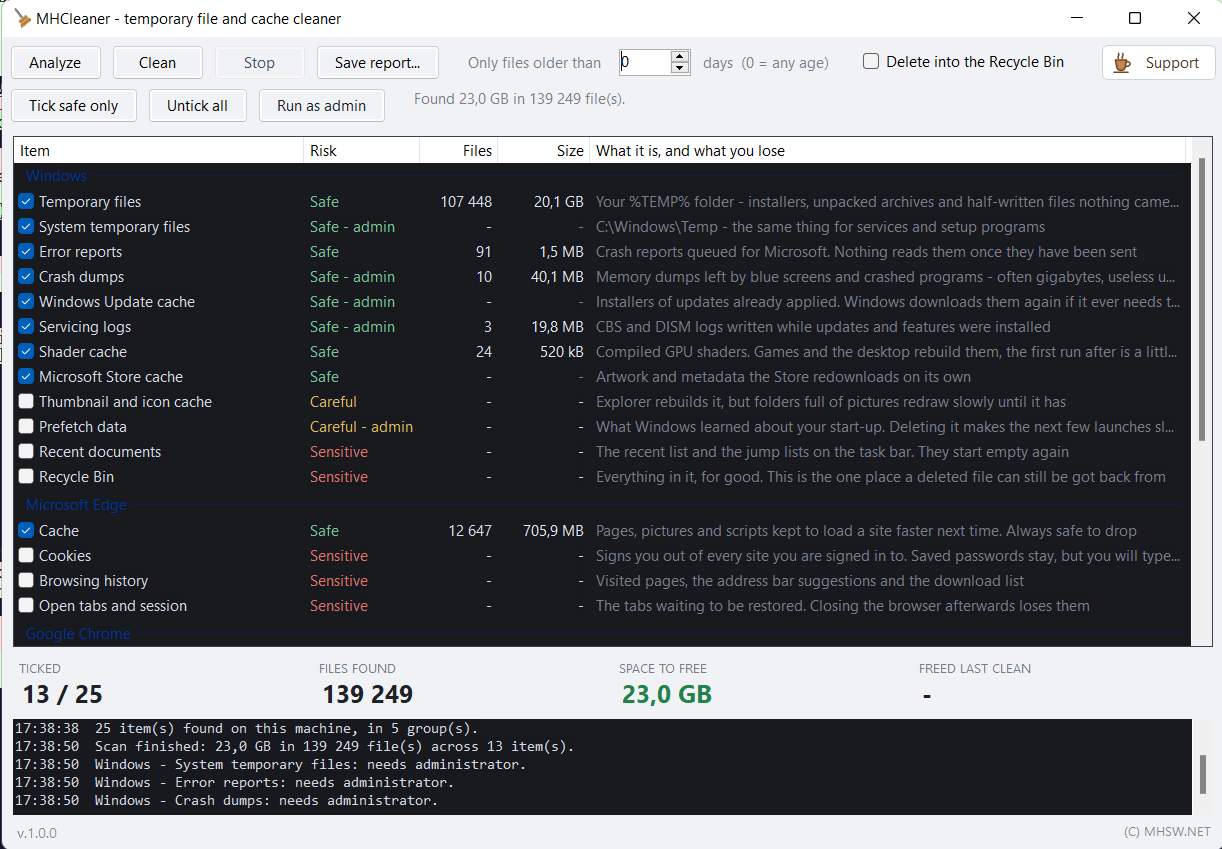
A machine collects tens of gigabytes of temporary files in a year: unpacked installers, browser caches, forgotten crash dumps, downloaded updates that were applied long ago. Cleaning up through the system's own tools means several separate dialogs, and for most items you never learn what happens if you delete them.
MHCleaner puts them in one table. Every item shows its group, a risk level, the number of files, the size and a sentence explaining what it is. An item whose folder does not exist on the machine never appears at all, so the table holds only what is really there.
It is one MHCleaner.exe of 205 kB. No installer, nothing written to the registry, and it fits on a USB drive next to your other service tools.
Three steps, no shortcuts
-
Ticking
The table lists only what exists on the machine. On the first run, only what comes back on its own is ticked. Tick safe only and Untick all handle it in bulk, and the selection is remembered for next time.
-
Analyze
Measures every ticked item and fills in the file count and size. Nothing is deleted in this step, and Stop ends it whenever you want.
-
Clean
Deletes what was measured, after a single confirmation that names the groups and calls out the items you will notice. The tiles below then show how much space was freed.
Risk levels
| Level | What it means | Ticked out of the box |
|---|---|---|
| Safe | Comes back on its own. It only costs the time to rebuild. | yes |
| Careful | A one-off slowdown — a cache that has to warm up again. | no |
| Sensitive | Something you will notice: sign-ins, history, open tabs, the recycle bin. | no |
Only Safe items may be ticked by default. That is a rule in the code, not a guideline: the program never proposes deleting something you would notice.
What it cleans
| Group | Items |
|---|---|
| Windows | %TEMP%, C:\Windows\Temp, error reports (WER), crash dumps and minidumps, the Windows Update cache, Delivery Optimization, servicing logs (CBS, DISM, MoSetup), shader caches (D3D, NVIDIA, AMD), the Microsoft Store cache. As Careful: thumbnail and icon caches, Prefetch and the font cache; as Sensitive: the recent documents list and the recycle bin. |
| Browsers | Edge, Chrome, Brave, Vivaldi and Firefox. For each one the cache (Safe), plus cookies, history and open tabs (all Sensitive). |
| Applications | Teams, Office, Discord, Spotify, VS Code, NuGet, .NET, Java, Adobe, Steam — caches only, all Safe. |
What it never touches
- Downloads and Documents. Nothing in them comes back on its own.
- Anything under
Program Files. - The registry. CCleaner cleans it, this program does not: the risk against the space gained is a bad trade, and a broken key is harder to find than a few hundred kilobytes.
- Paths of your own. No mask field, no folder picker. The list of paths is fixed in the code — and that is exactly the safeguard a custom path would remove.
The extras
- Age filter — Only files older than N days leaves anything newer alone. Zero means no limit.
- Delete into the recycle bin instead of for good, when you want a safety net.
- Save report… writes a self-contained HTML file listing what was found and what was deleted — a record for the job folder.
- Run as admin restarts the program elevated. Without it some items are simply skipped and the log says so.
- F1 opens the help with the risk levels explained.
Requirements
- Windows 10 or Windows 11 (64-bit).
- .NET Framework 4.8. Windows 10 (since 1903) and Windows 11 already ship it, so there is nothing to install.
- Running as administrator is not required. Without it the system items (
C:\Windows\Temp, crash dumps, the Windows Update cache, servicing logs) are skipped and marked admin in the table. - The interface is in English.