
 Enlarge
What it does
Working out what sits inside someone else's computer is possible without tools — but it means clicking through system information, device manager, disk management, plus something extra for memory and displays. By the time you have it all, the job is over.
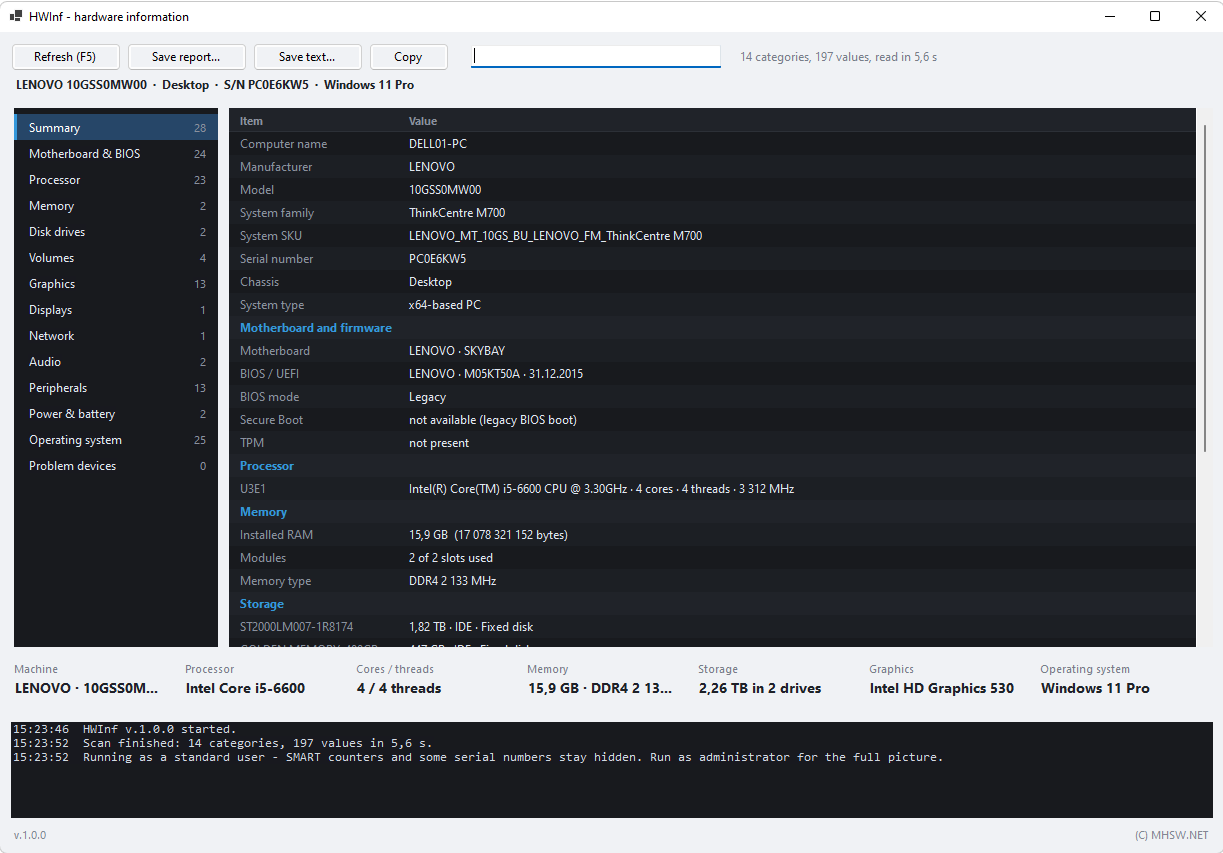
HWInf reads everything at once and lays it out in a single table. Categories on the left, values on the right, summary tiles and a log at the bottom. Whatever the machine tells you can be saved with one button as a report for the customer or as a text file for the job folder.
It is one HWInf.exe: no installer, nothing written to the registry, and it fits on a USB drive next to your other service tools.
What’s new · v1.0.1
- TPM via TBS: no more "not present" just because WMI refused a standard user
- BIOS/UEFI mode and the active power plan without elevation; the disk scan retries after a dropout
- The Graphics tile shows the real adapter, not the remote desktop one
- The window scales with DPI, the tiles fit, disk and network details are no longer clipped
- Categories are listed right at start-up, a Help (F1) button was added, search and the category list hand over to each other
- Easier to read: clocks without separators, keyboard layouts as languages, printer status, an empty drive reads "no media"
- HTML report: long cells wrap, the seven tiles fit one row
Fourteen categories
| Category | What you find there |
|---|---|
| Summary | A cross-section of everything that matters — machine, board, processor, memory, disks, graphics, system. |
| Motherboard & BIOS | Board, chassis, BIOS version and date, UEFI mode, Secure Boot and TPM. |
| Processor | Model, cores and threads, clocks, cache sizes, virtualisation support. |
| Memory | Every module separately: type (DDR4/DDR5), speed, slot, size, chip manufacturer, part number and serial. Plus how many slots are free. |
| Disk drives | Model, interface, SSD or spinning platters, drive health and power-on hours, wear and temperature. |
| Volumes | Drive letters, capacity, free space and how full they are. |
| Graphics | Graphics card, driver and the real amount of memory. |
| Displays | Display make, model and year, diagonal, resolution and connection type. |
| Network | Network adapters, MAC addresses, IP, gateway and DNS. |
| Audio | Audio devices and their drivers. |
| Peripherals | Keyboard, mouse, optical drive, USB controllers, printers. |
| Power & battery | Battery, power supply and the active power plan. |
| Operating system | Edition, version and build, install date, memory and page file. |
| Problem devices | Devices Windows reports an error for — every yellow mark from device manager in one place. |
What the program cannot know
Power-on hours, SSD wear and drive temperature can only be read under an administrator account, and only on some controllers. When they are unavailable the column says not reported and the log mentions it — rather than inventing a number.
Disk serial numbers come back from some controllers with the character pairs swapped. The program prints what it is given without trying to fix it; if a serial does not match the label, this is usually why.
Search across everything
The Find box searches every category at once and lists the hits as category, item and value — so when you are after a serial number or a particular driver, you do not need to know which category holds it.
Ctrl+F jumps into the box, Esc clears it, Ctrl+C copies the selected rows to the clipboard.
Export
- Save report… — a self-contained HTML file for the customer: summary tiles, a table of contents, a card per category and disk usage bars. No external files, opens without internet and travels as a single attachment.
- Save text… — every category as plain
.txt, for when the inventory has to go into the job folder or be pasted somewhere. - Copy — the contents of the table to the clipboard.
Without opening the window
For service scripts that walk a machine and collect evidence there is a command-line mode:
HWInf.exe --report writes the HTML, HWInf.exe --text the text inventory. With no further argument the file name comes from the date and time; otherwise append the path to the switch.
Why it is fast
The system interface the data comes from is slow — some queries take over a second, and an honest sequential scan would run for about thirteen seconds. So HWInf fires every query in parallel right at startup and keeps the answers, which means nothing is read twice. The full inventory is ready in roughly five seconds.
Requirements
- Windows 10 or Windows 11 (64-bit).
- .NET Framework 4.8. Windows 10 (since 1903) and Windows 11 already have it.
- Running as administrator is not required; without it only the drive health values are missing.
- Works on desktops and laptops alike — categories that do not apply to the machine simply stay empty.