
 Enlarge
A hundred printers on one machine
Printer service is part of what I do, and our service machine has around a hundred printers installed. Finding one particular queue among them is a problem: the standard Windows list is just icons, with no manufacturer, no model, no address and above all no sign of whether the printer is even switched on. Any machine that has collected dozens of queues over the years ends up the same way.
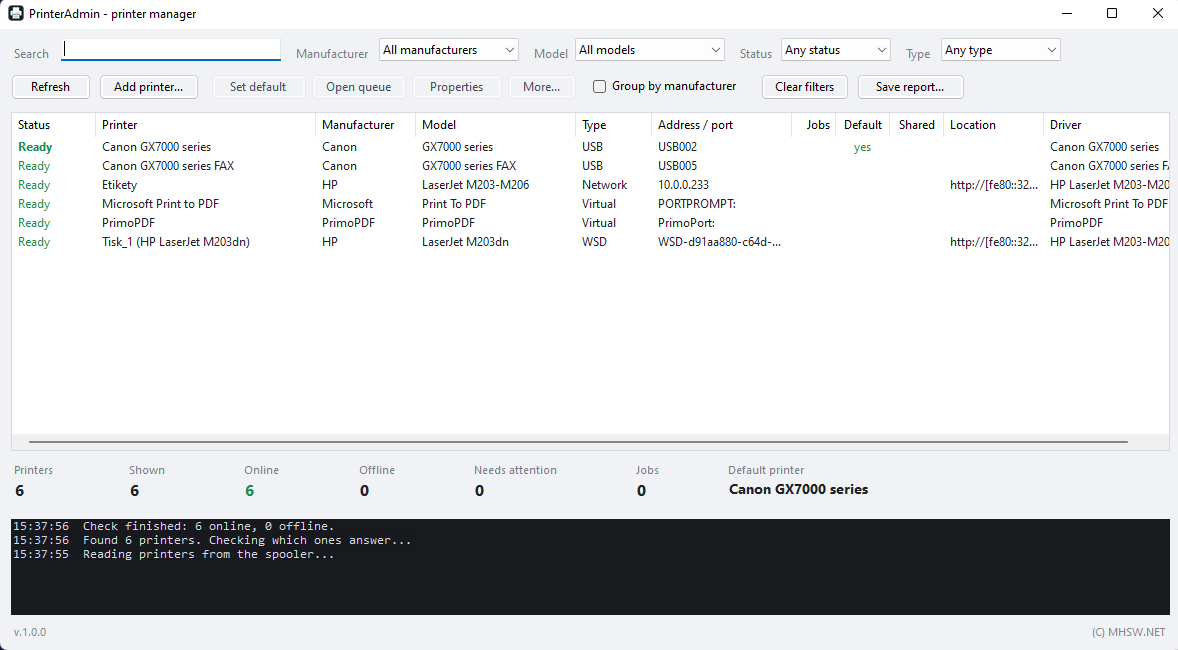
So PrinterAdmin shows them as a list you can search and filter by manufacturer, model, status and connection type. For every queue it also checks whether anyone is at the other end.
The program came out of my own need. It is a single PrinterAdmin.exe: nothing is installed and nothing is left behind in the registry.
Finding the right one
- Search filters as you type across name, model, IP address, port, driver and location. Several words chain together —
hp m203narrows the list twice. - Sorting by clicking a column header: status, name, manufacturer, model, connection type, address, job count, location, driver.
- Filters by manufacturer, model, status and connection type.
- Grouping by manufacturer, for when you need to see how many of which brand are in the building.
Manufacturer and model from ugly names
Queues are named however someone named them. So the program pulls the manufacturer from the driver information and the model from the queue name, and where that fails it makes an educated guess — trimming suffixes such as "PCL 6" or "(V4)" from the driver name. The columns then read HP · M203dw instead of HP Universal Printing PCL 6 (v7.0.0).
Is the printer on?
Windows will not tell you this, and it is the first thing anyone wants to know. The program asks according to the connection type, because not every queue has something to ping:
| Queue type | How it is checked |
|---|---|
| Network | A connection to the print port (usually 9100). Even a refused connection means the printer is on — it just has that port closed. Only when the connection times out is a ping tried. |
| Shared | A query to the server hosting the queue. |
| USB, LPT, WSD | They have no address, so the spooler's own state decides. |
| Virtual (PDF, XPS, fax) | Always available. |
Probes run sixteen at a time, so fifty printers do not mean fifty waits in a row — the list fills in as answers arrive.
What you can do with a queue
- Set as default, open the job queue or the properties.
- Print a test page.
- Pause and resume printing, cancel all jobs.
- Open the printer's web interface in a browser.
- Copy the printer details to the clipboard.
- Remove the printer or start the add-printer wizard.
The system dialogs are not reinvented — the program calls the ones Windows already has. Pausing, resuming and cancelling jobs on other people's queues needs administrator rights; without them you get a clear message rather than a silent failure.
Printer inventory
Save report… writes a self-contained HTML file with every queue, its details and the availability that was measured. It opens offline and travels as a single attachment or goes into the job folder.
Without opening the window:
PrinterAdmin.exe /report inventory.html
It reads the printers, checks availability, writes the file and exits — usable from a logon script or a remote session when you need the state of every machine in the company.
Requirements
- Windows 7 SP1, 8.1, 10 or 11, 64-bit throughout. One file runs on all four.
- The .NET runtime is bundled, no installation required.
- Everything works without administrator rights except acting on other people's queues.
- The interface is in English.
Two more things on Windows 7
The machine needs the Visual C++ 2015–2019 x64 redistributable and the updates that add SHA-2 signature support (KB3063858 and later). Without them the program will not start. A fully patched Windows 7 SP1 usually has both already.
Windows 8.0 is deliberately not on the list — Microsoft itself dropped support in 2016. It would most likely work, but it is not tested.