
 Enlarge
What it does
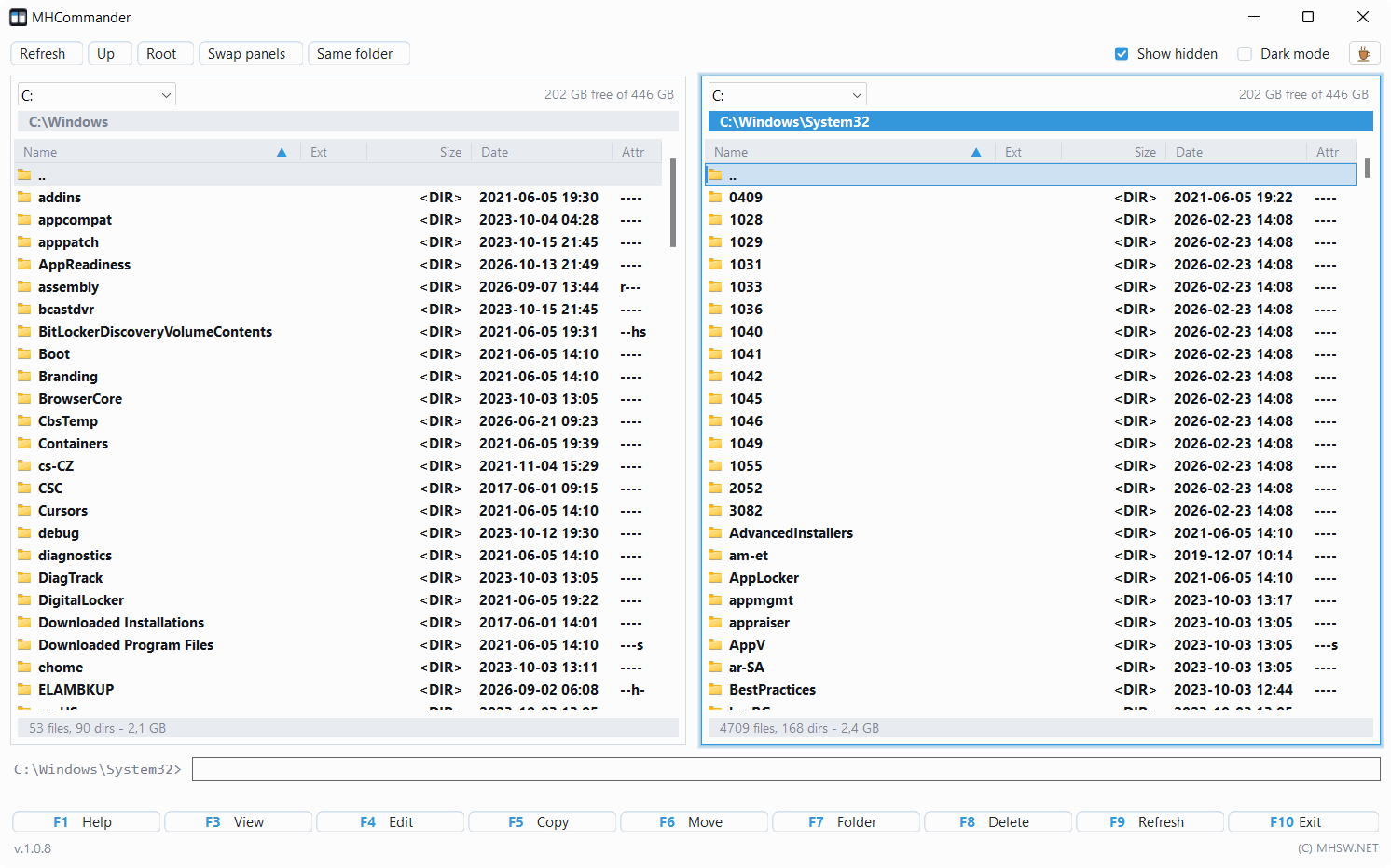
Two panels side by side, each with a drive selector showing free space, a path and a file list. The columns are Name | Ext | Size | Date | Attr, with the extension split from the name the way you are used to. Directories are bold and sorted to the top, hidden and system files dimmed, selected files in red. Clicking a column header sorts; clicking again reverses the direction.
The active panel is the one with the blue path, and Tab switches between them. At the bottom sit a status line for messages and a strip of function keys, so you do not have to remember them.
A path can also be typed by hand (Ctrl+P, or a click on the path bar) — that is the only way to reach \\server\share, since no drive letter stands in for it. \\server on its own lists the shares the server offers, and %TEMP% is expanded too. A flash disk you pull out drops off the drive list by itself, and a panel standing on it falls back to the nearest live directory.
One MHCommander.exe, no installer, no registry writes. The Dark mode switch in the top right repaints the whole window including the bars and buttons, not just the file panels; dark is the default.
Status: version 1.1.2
What version 1.1.2 brought
Bug fixes and optimisations. Copying, moving and packing are safer in unusual cases, deleting to the recycle bin asks first when a file would be deleted for good, and the window no longer freezes on an unreachable network drive. Renaming, the cd command and paths ending in a backslash are fixed too.
Added in the same version: a destination ending in a backslash (D:\new\) is always a folder for copy, move and pack, the messages after F7 and Shift+F6 stay in the status line, the Size column holds a file up to 1 TB, a move on the same disk asks about overwriting only once, Ctrl+E shows the command line history as a menu, and the Alt+letter quick search in the list is fixed.
What version 1.1.1 brought
The computer stays awake in the middle of a copy. While the program copies, moves, packs or deletes, Windows does not go to sleep when left alone; the screen may still turn off. After waking up, a disk or a share might not come back and the running copy froze. A closed lid or Sleep chosen by hand still takes precedence.
A cancelled copy no longer counts the half-copied file as copied.
What version 1.1.0 brought
Pack to ZIP with Alt+F5. The marked files and folders go into one ZIP, by default into the other panel and named after the item. Packing uses the same progress window as copying, and F2 in the dialog packs in the background. Photos, videos and archives are stored as they are, since compressing them again gains nothing. A cancelled pack leaves no broken archive behind, and an archive being replaced stays untouched.
Paths longer than 260 characters. Deeply nested folders, typically from development projects or backups, can be opened, viewed (F3), measured (Space), copied and moved. Their contents used to fail to load at all.
What version 1.0.9 brought
No more freeze on a sleeping drive. At start the program asked every drive for its label and waited for the answer, so a sleeping network drive or optical drive could leave the window half-drawn for several seconds. Now the drive list shows at once and the labels fill in in the background.
What version 1.0.8 brought
Folders full of programs open fast. A folder with a hundred installers – Downloads, typically – used to keep the list blank for several seconds while the icon of every .exe was read. Now the list shows at once with the icon of the file type, and the programs' own icons follow a moment later in the background.
What version 1.0.7 brought
Delete and copy in the background. F2 in the question runs it in the background while you keep working; progress and a bar show in the status line, and a click stops it or opens the list of jobs. On a network drive the delete is quick, 8 files at once, and the question warns that a share or a stick has no recycle bin.
Folder history: Alt+← and Alt+→ go back and forward, Alt+↓ lists the last 20 folders. Shift+F4 creates a new file and opens it in its editor.
What version 1.0.6 brought
An editor per file type. F4 no longer has to open everything in Notepad. Right-click → "Editors for F4…" and set rules like *.txt *.htm → UltraEdit; whatever no rule catches goes to the default editor. The dialog shows what the file under the cursor opens in, and Add… offers its extension and the editor you have installed straight away.
A more modern look. Dark mode is dark right up to the title bar of the window and every dialog, on Windows 11 with round corners and a thin blue border. The active panel has a soft blue glow and the cursor row a blue stripe. The buttons are smaller, rounded and light up under the mouse; the F1–F10 bar shows the key in blue. The check boxes, the drive list and the thin blue copy progress bars are dark too.
What version 1.0.5 brought
Copying in the background. The Background button in the progress window hides it and the copy or move carries on while you keep working. Its progress shows on the right of the status line, and a click brings the window back. When an answer is needed – the file is already at the destination, or there is not enough space – the window comes back by itself. Quitting during a copy asks first.
The panels fill up while a copy runs, so new files and folders appear as they arrive, and marks are kept. Also fixed: after copying to a network drive the new content sometimes did not show until the panel was refreshed by hand.
Typing goes straight to the command line, the way Total Commander does it: just type cd .. and Enter, no click into the line first. Jumping to a file by its first letters has moved to Alt+letters.
What version 1.0.4 brought
Favourite folders on Ctrl+D. A menu opens under the path bar, keys 1–9 jump straight to a folder, "Add current folder…" adds the one you are in and "Edit favorites…" edits the list – add, rename, delete, reorder. Handy above all for \\server\share paths, which have no drive letter.
On the first start the program offers a Start menu shortcut (any time later it is "Add to Start menu" in the context menu). From there, or from the icon of the running program, it pins to the taskbar in one click.
Dark mode finally has dark scrollbars, and the horizontal scrollbar that showed up even when the columns fit is gone. An empty DVD drive or card reader says there is nothing in it instead of a puzzling "not found", and the result of a delete or copy stays in the status line, so you can see how it went.
What version 1.0.3 brought
Settings survive a restart. View mode, hidden files, the Parallel option, window size, panel split, the paths and sorting of both panels and the command history are kept in MHCommander.ini next to the .exe, or in %APPDATA%\MHSW.NET when that folder is read-only. An Editor= line picks what F4 opens a file with.
Under the panels sits a command line the way Total Commander has it: cd, cd .. and X: move the panel, anything else runs through cmd /c. Ctrl+S turns on a list filter (*.cs, report*, part of a name, several masks with a space), and Alt+F7 finds files by mask, size and date, across a whole drive if you like, with hits appearing while the search runs.
Clipboard and drag & drop use Explorer's format, so Ctrl+C / Ctrl+V and dragging work both ways between MHCommander and Explorer. Space on a folder computes its size, Shift+F6 renames in place, Alt+Enter opens properties, Ctrl+T a console in the current folder. The F3 viewer detects the encoding (UTF-8, UTF-16, Windows-1250), searches and wraps lines.
Copy and move are finished
F5 (copy) and F6 (move / rename) both work and have been tested. They do not go through the shell but through an engine built on CopyFileEx: progress by the byte, cancellable at any point, and a prompt before overwriting. When the source and the target sit on the same SMB share, Windows 8 and newer let the server do the transfer itself, so the data never crosses your network card.
The Parallel checkbox in the dialog runs several files at once — as many jobs as there are cores, at most eight. On a network drive or a flash disk it shows, because there the per-file latency decides; on a single local disk it does not help, which is why it is an option and not the default.
Within one volume F6 only renames, so a folder holding ten gigabytes moves instantly without a byte being read. Across drives it is a copy followed by a delete, and only what demonstrably arrived on the other side is removed.
The engine checks the free space at the destination before it starts. Since version 1.1.0 it also handles trees deeper than 260 characters.
Deleting has no safety net
To the recycle bin (F8, Del) and permanently (Shift+F8, Shift+Del). A permanent delete cannot be undone, so take care.
Keys
| Key | What it does |
|---|---|
| Tab | Switches the active panel |
| Enter | Enters a directory, runs a file |
| Backspace | One directory up |
| Space | Selects and deselects an item |
| Insert | Selects and moves the cursor down |
| * | Inverts the selection |
| F1 | A window listing the keyboard shortcuts |
| Alt+F1 / Alt+F2 | Drive selector for the left / right panel |
| Ctrl+P, Ctrl+L | Type a path by hand, network paths and variables such as %TEMP% included |
| Ctrl+R, F2, F9 | Reloads the panel |
| Ctrl+U | Swaps the panels |
| Ctrl+← | Opens the active path in the other panel |
| Ctrl+S | List filter (mask, part of a name, several masks with a space) |
| Ctrl+A | Selects everything |
| Ctrl+F3 – Ctrl+F6 | Sort by name, extension, size, date |
| Ctrl+PgUp / Ctrl+PgDn | One directory up / into the directory under the cursor |
| Ctrl+C, Ctrl+X, Ctrl+V | Clipboard in Explorer's format; Ctrl+Shift+C copies the paths as text |
| Ctrl+T | Console in the current folder |
| Ctrl+Enter / Ctrl+Shift+Enter | Inserts the name / path into the command line |
| F3 | File viewer — text or hex, Ctrl+F find, W wrap |
| F4 | Opens the file in an editor (Notepad, or Editor= in the ini) |
| F5 | Copy — a dialog with the target and the Parallel option |
| F6 | Move and rename |
| Shift+F6 | Rename in place |
| F7 | New directory |
| Alt+F7 | Find files by mask, size and date |
| F8, Del | Delete to the recycle bin |
| Shift+F8, Shift+Del | Delete permanently |
| Alt+Enter | File properties |
| Space on a folder | Computes the folder size (Alt+Shift+Enter for all) |
| Shift+F10 | Context menu |
| Ctrl+H | Show and hide hidden files |
| F10 | Quit |
What comes next
Folder comparison
Shift+F2 marks what is missing or newer in the other panel.
Unpacking ZIP
The other direction to Alt+F5.
Requirements
- Windows 10 or Windows 11 (64-bit).
- .NET Framework 4.8, part of Windows 10 since 1903 and of Windows 11.
- The interface is in English.
Updates and privacy
At start, MHCommander asks www.mhsw.net once whether a newer version is out. If there is one, it says so in the status line and the version in the window's footer becomes a link to the download. Nothing is downloaded or installed on its own.
The request carries only the program name, its version and the Windows build number — nothing about you, your files or your computer. The server counts how often each version starts; it does not store IP addresses. More about the measuring is on the Is MHSW safe? page.
It can be switched off in the program: right-click in a panel → Check for updates at start. The line CheckUpdates=0 in MHCommander.ini does the same. Nothing is sent then.